
Master SAP MDG Workflow Configuration Guide
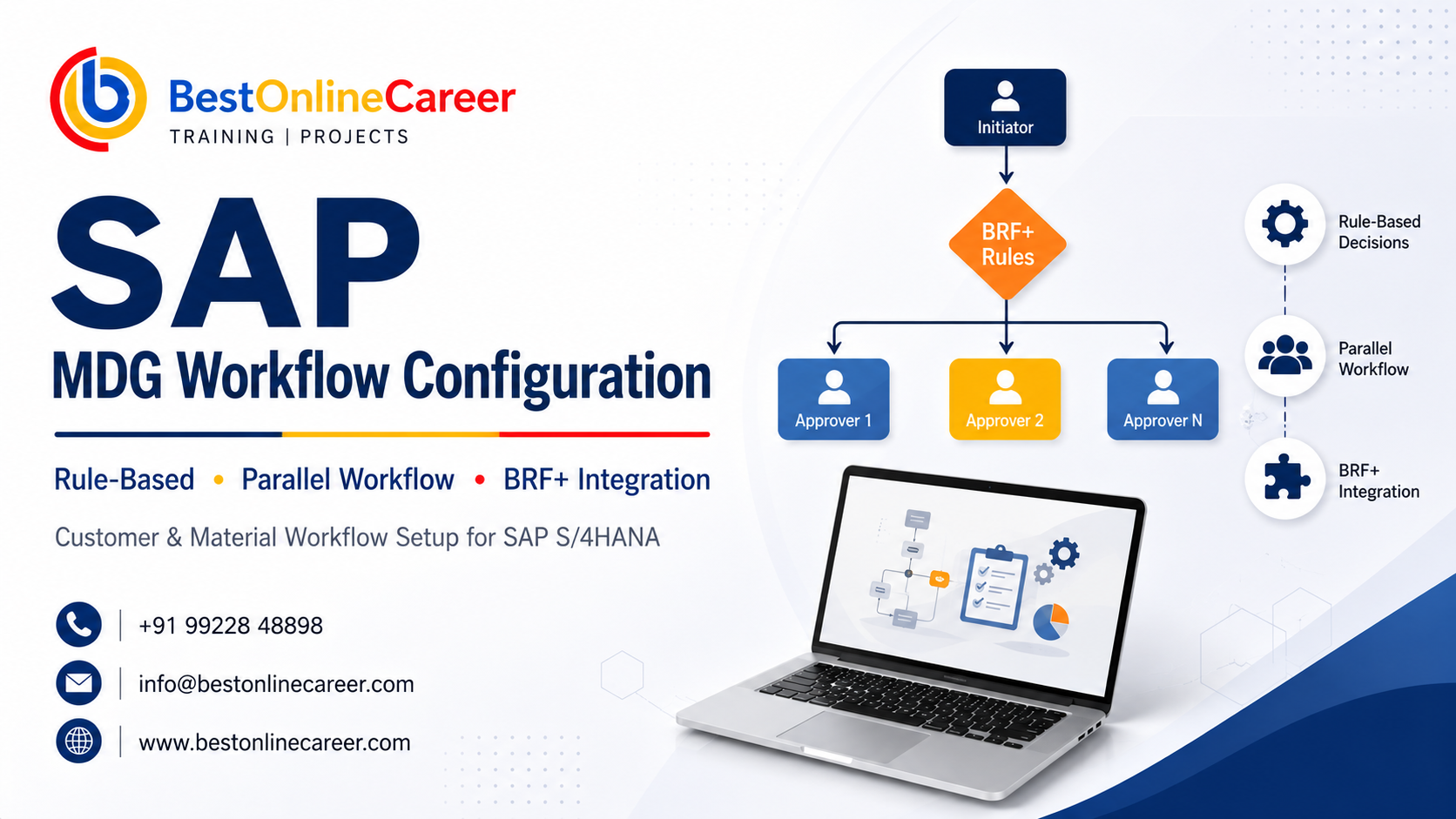
Complete Guide to SAP MDG Workflow Configuration
The management of master data at the enterprise level is among the biggest issues that companies have to face in the present. SAP MDG workflow (Master Data Governance) helps solve this problem by offering an organized, approved procedure to build, modify master data and then distribute it over all of your SAP landscape.
If you're an SAP consultant who is entering MDG for the very first time, or an analyst in business trying to comprehend the process of approvals in your system, this guide explains everything — from the simplest concepts to more advanced SAP MDG workflow management — in simple terms.
At the end of this article, you'll be able to understand:
- What exactly SAP MDG Workflow is and the reason it is important
- The various workflow types (parallel, BRF+, rule-based)
- How to configure workflows to work with master material and customer data
- The key distinctions in SAP MDG versions, including SAP MDG 9.0 workflow
- Tips to ensure that you get it right the first time
What Is SAP MDG Workflow?
SAP Master Data Governance (MDG) is an application that runs on SAP S/4HANA and ECC and regulates the entire lifecycle of master data — starting from its creation and approval and then replication. The SAP MDG workflow is the basis for this governance process.
When a user files an application for change (CR) — for example, establishing a new vendor, modifying the bank details of a customer, or altering material information — the workflow decides:
- Who must approve it?
- In which order do the approvals occur?
- Which rules determine specific steps?
- What can happen if someone doesn't accept or fails to act on time?
Without workflow, master information changes could be uncontrolled, which could result in problems with data quality, risk to compliance, as well as operational chaos. When you properly configure SAP MDG workflows, you get a transparent, auditable, and automated approval procedure.
Types of SAP MDG Workflows
Understanding the various workflow types is the base for the SAP MDG workflow setup. There are three main methods:
1. Single-Step Workflow
The most straightforward form — one approver reviews the request and then either approves or denies the request for change. Ideal for data with low-risk changes, or small businesses that have a flat approval structure.
2. Parallel Workflow in SAP MDG
Parallel workflow in SAP MDG allows multiple approvers to examine changes simultaneously, instead of one after the other. This is a great option when:
- Multiple departments need to approve independently (e.g., Finance and Compliance both looking over the same vendor)
- You'd like to decrease the time it takes to cycle approvals simultaneously
- Different regions of data on the change request will require different approvals at the same time
A parallel workflow ensures that all approvers are notified of the task simultaneously. The process will only move forward when all (or the specified minimum number of) approved approvers have completed the task. This improves the speed of the process without compromising governance rigor.
Configuration tip: When setting up parallel workflow within SAP MDG, identify the person responsible for each branch by using organizational information and custom-designed function modules to prevent tasks being pushed to the wrong mailbox.
3. Rule-Based Workflow in SAP MDG
The rule-based workflow in SAP MDG (also known as SAP MDG rule-based workflow) is the most adaptable and effective alternative. In lieu of hardcoding the approval procedures, the system examines the business rules during runtime in order to decide the best workflow process.
For instance:
- If the request to change is affecting the credit limit of a customer that is greater than €100,000 — send the request to the Regional Credit Manager
- If the material that is being produced is a substance that poses a risk — include a Safety Officer approval procedure
- If the field that has been changed refers to "Payment Terms" — contact the Treasury team
The SAP MDG rule-based workflow makes use of the Business Rule Framework Plus (BRF+) to assess these requirements, which will lead you to the section that follows.
SAP MDG BRF Workflow: Business Rule Framework Plus Integration
SAP MDG BRF workflow is a reference to the integration of Business Rule Framework Plus (BRF+) into the MDG workflow engine. BRF+ is a powerful rule engine built into SAP which lets you create, manage, and assess complex business logic without having to write ABAP code.
How SAP MDG BRF Workflow Works
- A change request can be made by an end user
- MDG initiates the process and then calls BRF+ to assess the rules that have been configured
- BRF+ will return an outcome — for example, a workflow variant ID or agent determination process
- The workflow engine assigns this task to the proper approver(s) in accordance with the outcome
Benefits of SAP MDG BRF Workflow
- Rule management without code: Business analysts can modify routing rules without ABAP developer involvement
- Auditability: Every rule decision is recorded and audits are simple
- Reusability: The BRF+ application can be used to serve many MDG objects (customer, material, supplier)
- Flexibility: Rules can check any field in the request for change, organizational attributes, or even call functions from external modules
Setting Up BRF+ for MDG Workflow
To set up the SAP MDG BRF workflow, go to transaction BRF+ (BRFPLUS) and then create a fresh BRF+ application that is linked to MDG workflow. The most important steps are:
- Develop a BRF+ application of the type "MDG Workflow"
- Define Decision Tables using input parameters (e.g., change request type, fields, entity data fields)
- Create workflows by mapping the output to variations
- Assign the BRF+ application to the MDG Customizing section under Process Modeling → Rule-Based Workflow
SAP MDG Workflow Configuration: Step-by-Step Overview
Here is a quick overview of the SAP MDG workflow configuration within the SAP system. This can be applied to MDG in S/4HANA as well as ECC environments.
Step 1: Activate Business Functions
Make sure that the appropriate SAP MDG business functions are active in transaction SFW5:
- MDG_FOUNDATION
- MDG_GENERIC (for general workflow features)
- Object-specific functions like MDG_MATERIAL or MDG_CUSTOMER
Step 2: Configure the Process Model
Go to SAP Customizing (SPRO) → Master Data Governance → General Settings → Process Modeling.
Here you define:
- Change Request Types — what kind of data change this workflow governs
- Actions — what an approver is able to do (Approve, Reject, Request Revision)
- Steps — each of the stages in the approval chain
Step 3: Define Workflow Variants
Workflow variants decide which workflow template is activated for a particular type of change request. There can be multiple variations for a single CR type (e.g., a basic variant for small-value changes, as well as a more complicated variant for high-value ones, with BRF+ choosing between them at runtime).
Step 4: Assign Responsible Agents
Every workflow process requires a responsible agent — that is, the person or role who receives the work item. Agents can be identified using:
- Organizational units from HR Org Management
- SAP roles or positions
- Custom function modules for dynamic agent determination
Ready to Start Your Learning Journey?
Join thousands of learners and build your future with expert-led courses and 100% practical training.
Expert Guidance
Learn from industry experts
Trusted & Recognized
Top-rated by learners
Flexible Learning
Online options
Placement Support
Career support & more
Step 5: Configure Notifications and Escalations
Create email notifications, deadline monitoring, and escalation pathways to ensure that work tasks do not get stuck. MDG utilizes SAP Business Workplace (SBWP) as well as SAP Fiori My Inbox for the management of workflow tasks.
Step 6: Test in Development System
Always verify every SAP MDG workflow setting thoroughly using a quality or development system before transferring to production. Utilize transaction SWIA to identify and monitor problems with workflow.
SAP MDG Customer Workflow
The SAP MDG customer workflow manages the lifecycle of master data of customer records — among the most frequently controlled entities within every MDG deployment.
Common Customer Workflow Scenarios
| Scenario | Typical Approvers |
|---|---|
| Create a new customer | Data Steward → Credit Manager |
| Change the payment conditions | Finance Manager → Treasury |
| Update bank details | Data Steward → Fraud Control |
| Block/unblock customer | Sales Manager → Finance |
| Merge duplicate customers | MDG Super User |
Key Configuration Points for Customer Workflow
- Change Request Type: Make use of the standard CR type MDG_CR_C1 for your customer or design a custom one for specific business requirements
- Field-Level Rules: Using SAP MDG rule-based workflow, you can set up different approval routes depending on the specific fields that are updated on the customer's record
- Dual Control: When dealing with sensitive data like bank account updates, set up a four-eyes rule (two approvals are required)
- Fiori Integration: The MDG Customer Workflow is integrated directly to SAP Fiori for a modern, mobile-friendly approval experience
SAP MDG Material Workflow
The SAP MDG material workflow oversees the management of material master records — perhaps the most complicated master data object in SAP because of its numerous views (Basic Data, MRP, Sales, Accounting, etc.).
Material Workflow Complexity
A single material can contain information spread across many organizational levels (plant, sales org, storage location). The MDG material workflow has to manage:
- View-specific approvals: The MRP view may require input from Supply Chain, while the Accounting view will require input from Finance
- Multi-plant scenarios: A material being extended to a new plant may require approval from the local plant manager
- Mass updates: Bulk updates to multiple materials at the same time require special workflow procedures to prevent bottlenecks
Parallel Workflow for Material Master
This is an important application for parallel workflow in SAP MDG. When you create a new material that includes Basic Data, MRP, and Accounting views, you can modify the workflow so that:
- Supply Chain looks at the MRP view
- Finance examines the Accounting view
- Quality reviews the Classification view
All at once — reducing lead time from weeks to days.
MDG Material Workflow Configuration Tips
- Make use of Edition-based processing to permit simultaneous editing without locking
- Create field groups to determine which fields an agent can view and edit as part of their workflow tasks
- Utilize BRF+ rules to choose a route based upon the type of material (FERT, ROH, HAWA) or industry sector
SAP MDG 9.0 Workflow: What's New?
SAP MDG 9.0 workflow introduced a number of significant enhancements in comparison to earlier versions:
Enhanced BRF+ Integration
MDG 9.0 enhanced the relationship between the workflow engine and BRF+, making it easier to set up complex rule-based routing without the need for custom ABAP enhancements.
Improved Fiori UX for Approvals
The My Inbox integration in MDG 9.0 has a greatly enhanced user interface for approvers, with better visibility into change request details and the possibility to approve, reject, or request clarification right from the Fiori tile.
Multi-Level Parallel Workflow Support
MDG 9.0 included better capabilities for hierarchical parallel workflows — in which parallel branches can contain sub-steps, allowing highly sophisticated governance scenarios.
Consolidated Workflow Customizing
Previous versions required jumping between several customizing nodes. SAP MDG 9.0 workflow integrates a lot of its configuration into a more streamlined and logical SPRO structure.
Note on Versioning: If you're on SAP S/4 HANA, the MDG functionality is built-in and develops with each S/4HANA release. Always read the SAP release notes for your particular S/4HANA version to determine which MDG workflow features are available.
Common SAP MDG Workflow Errors and How to Fix Them
Even experienced consultants encounter difficulties with MDG workflow configuration. Here are the most frequent issues:
| Error | Likely Cause | Fix |
|---|---|---|
| Work item does not appear in inbox | Agent not properly identified | Agent determination is checked using SWI5 or in the workflow log |
| Workflow stopped at a particular step | Deadline not defined or user quit company | Assignment of tasks or the configuration of substitution rules |
| BRF+ rule is not activating | BRF+ app not linked in MDG customizing | Verify the BRF+ application assignment in SPRO |
| Parallel branches not concluding | One agent hasn't performed | Verify that you have the correct substitution or auto-forwarding rules |
| Wrong workflow variant was selected | BRF+ decision table misconfigured | Test and review the BRF+ decision table logic |
Best Practices for SAP MDG Workflow Configuration
- Begin with a simple workflow, and then increase the complexity. Start with a single-step or sequential workflow and add rule-based or parallel logic as business needs become more clear.
- Engage business stakeholders in the early stages. The approval matrix — who approves what, and when — is a business decision, not an IT one. Document it in a RACI before interacting with the system.
- Use BRF+ for the entire routing process. Avoid hardcoding agents or workflow variations in ABAP. BRF+ makes the workflow easy to maintain by the business going forward.
- Plan for scenarios involving out-of-office or substitutions. A workflow that has to stop because an approver is away is a governance failure. Create substitution rules within SAP beginning on the first day.
- Monitor workflows continuously. Use transaction SWIA as well as MDG Fiori Monitoring tools to track open work tasks, overdue items, and workflow errors.
- Document the configuration. SAP MDG workflow configuration is a complex process that involves several moving parts across SPRO, BRF+, and the workflow builder. Maintain clear documentation for every decision made.
Conclusion
SAP MDG workflow is the basis of master data governance. Whether you're setting up a basic SAP MDG customer workflow or a complex SAP MDG material workflow using parallel workflows in SAP MDG and SAP MDG BRF workflow rules, investing in the correct configuration yields dividends in data quality, compliance, and operational efficiency.
From understanding the fundamentals of SAP MDG rule-based workflow to making sense of the enhancements made in SAP MDG 9.0 workflow, this guide gives you the basics to tackle your first MDG workflow configuration with confidence.
Begin step by step — create your process model, set your rules using BRF+, designate the appropriate agents, and then test thoroughly. The end result will be a controlled, transparent master data process that your organization can depend on.
Frequently Asked Questions (FAQs)
Q: What's the distinction between a rule-based and a parallel workflow in SAP MDG?
Parallel workflow runs multiple approval processes at once, while rule-based workflow uses BRF+ rules to determine the best approval route to take in accordance with data conditions. Both are mutually compatible and can be utilized in conjunction.
Q: Do I require ABAP capabilities to configure an SAP MDG workflow?
Basic configuration can be achieved using SPRO as well as BRF+ without ABAP. However, custom agent determination or more complex modifications will require ABAP development capabilities.
Q: Is SAP MDG workflow accessible inside SAP S/4HANA Cloud?
SAP MDG is accessible within SAP S/4HANA on-premise. SAP S/4HANA Cloud utilizes different master data governance mechanisms. Always check the most current SAP documentation to learn more about your deployment model.
Q: How long does an average SAP MDG workflow configuration take?
A basic single-object workflow (e.g., customer-only) can be created within 2–4 weeks. A complete enterprise deployment covering many objects with BRF+ rules as well as parallel workflows usually takes about 3–6 months.
Related SAP Training Courses
Tags
Share this article
Help others discover this valuable SAP content